The short version
- Better results, fewer tokens. On most tasks the agent now beats the individual modes on quality and uses fewer tokens.
- No more choosing modes or documents. Describe the task the way you would to a colleague, and the agent works out the rest.
- Tools only the agent has. N-Spec checks, examiner and art unit statistics, and more ways to find the right information in your documents.
- Everything you already use, in one request. The agent can search, load documents, analyze, draft, and produce figures as steps in a single task.
- One thing to do: turn on “enable for agent” for your custom prompts.
What’s in It for You
Better output for fewer tokens
Cost used to be the strongest argument against using an agent. That has now reversed. Across most tasks the agent uses fewer tokens than the individual modes, and its output is generally better:
| Task | Individual modes | Sandbox Agent |
|---|---|---|
| Summarizing an Office Action | ~450 tokens (Interrogate) | ~310 tokens |
| Preparing a complete Office Action response | ~4,000 tokens (Interrogate + Draft OA Response) | ~2,500 tokens |
The savings grow on longer tasks. When you run a job by hand across several modes, you keep re-sending the same context. The agent carries what it has learned from step to step and reads only what each step needs.
Just ask, like you would a colleague
You no longer have to decide which mode to use, which documents are relevant, or how to word a prompt for one mode versus another. The agent makes those calls itself and picks the tools, the documents, and the order of steps. You need very little onboarding and no special prompting skills.
Tools only the agent can use
A few capabilities are available only through the agent:
- N-Spec. Antecedent basis, literal support, patent profanity, parts list, figure consistency, and more, run directly on your drafts and documents. Requires an N-Spec subscription.
- Prosecution statistics. Allowance rates, timelines, and interview, RCE, and appeal data for an examiner, art unit, group, or tech center.
- More ways to find the right information. The individual modes work from the files you select. The agent picks the relevant documents itself and can quote exact passages word for word. It can also run exact-text searches, where a “not found” result can be trusted. And it can look up an application’s file wrapper and pull in just the documents it needs.
Most of these are deterministic tools. The individual modes are close to “pure LLMs”: they are excellent at open-ended work, but weaker at exhaustive, rule-based checks like antecedent basis and at specialized predictions like § 101 rejections. With the agent, N-Spec does the check, the examiner statistics come straight from USPTO data, and the LLM explains what the results mean. Together they do far more than either can alone.
From an application number to a working file
You already know the Search tab: find a case, select it, and send its documents into your context or style files. The agent can do all of that for you as part of a larger task. It uses the same USPTO Open Data Portal search, and it can also look up a case by application, docket, publication, or patent number. It reads the file wrapper and decides what to load. For example:
Example prompt
“For application 17/123,456: find the most recent Office Action, pull in all of the prior art cited in it, find some other OA responses in this technology space filed for the same applicant and load those into the style documents, then draft some initial argument proposals for this OA.”
That one prompt covers a case lookup, a file-wrapper review, downloading the references, a search for comparable responses, two sends into your session, the analysis, and the drafting. Before, you did each of those yourself, switching between the Search tab and the Sandbox modes.
Figures as part of the job
The agent uses the same Figure mode you already know, but as one step in a larger task. Ask it to “draft the claims, the spec, and FIGS. 1–4 from the disclosure,” and it works through each figure in turn, revising as it goes. The finished set appears in its final output, ready to download together.
What You Need to Do
You don’t have to do anything. The agent works well out of the box. But one step makes it work much more like you:
Enable your custom prompts for the agent
In the prompt management dashboard, select “enable for agent” on your custom prompts. Each enabled prompt becomes an action the agent can call, so your own workflow becomes part of how it works.
Take application drafting as an example. With no custom prompts, the agent analyzes the disclosure with Interrogate, combines it into a coherent invention, and then drafts using the Draft Patent Application and Figure modes. That works well. Now suppose you’ve enabled custom prompts for disclosure analysis, § 101 framing, claim drafting, and background drafting. The agent will use them, and they shape two things:
- How the task is broken down. Having a § 101 framing action tells the agent that framing is its own step, done before the claims are drafted.
- How each step is done. Each action carries your instructions for that step.
The more effort you put into building a library of well-written custom prompts, the more the agent will do tasks the way you would.
Make the descriptions say what you mean
The agent decides when to call a custom action mostly from that action’s description, so state both what the action is for and what it is not for. A “Claims Drafter” written for new applications could get called to draft Office Action claim amendments, which follow very different conventions, unless the description rules that out. A sentence like this is usually enough: “Use only for drafting original claims for a new application; do not use for claim amendments in Office Action responses.”
Staying in Control
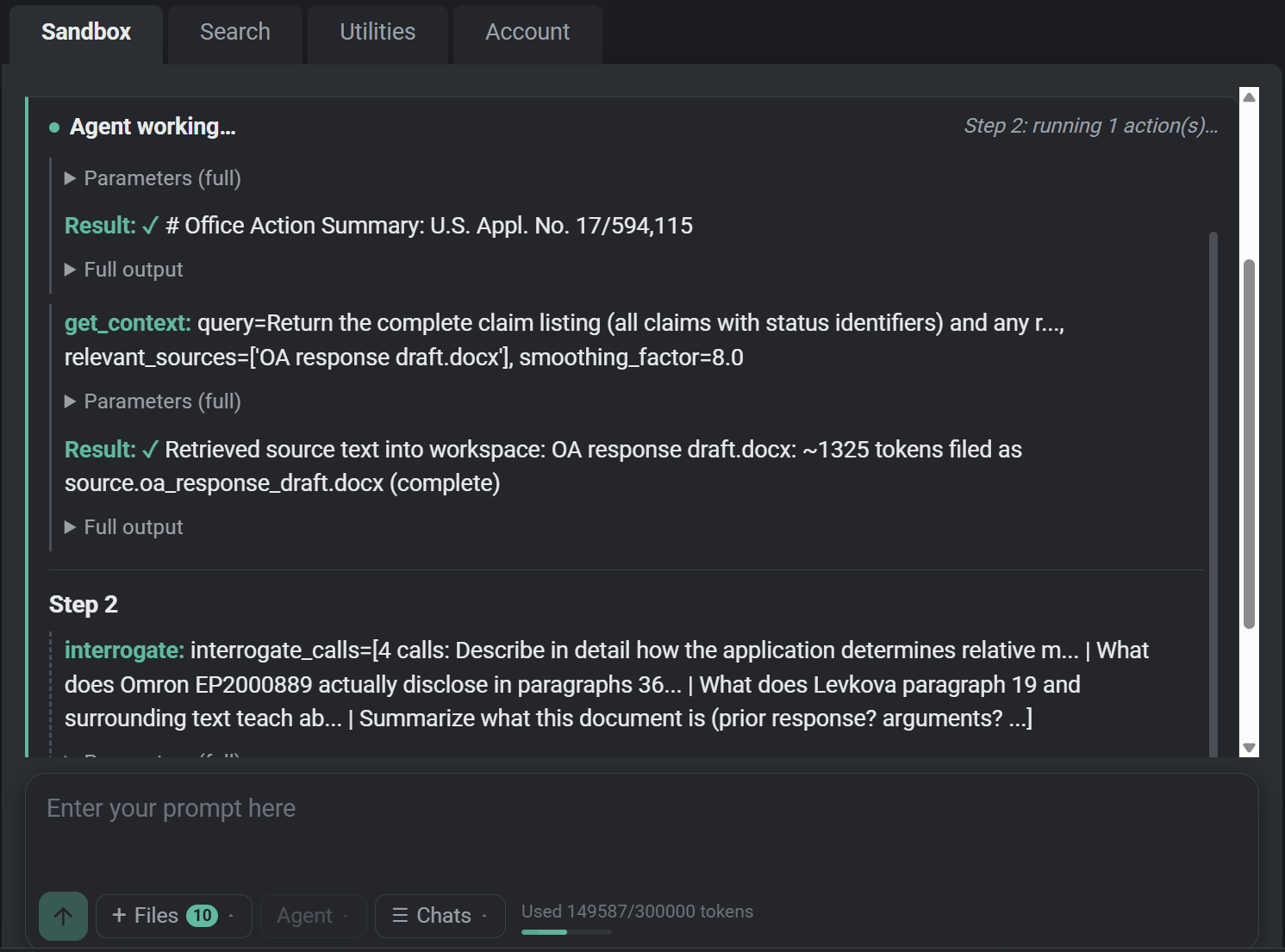
- Live action display. Every action appears as the agent takes it, so you can review the work as it happens.
- Pause, or deliver now. Stop at any point, or have the agent hand over what it has so far if it’s heading in the wrong direction.
- Feedback mid-run. Steer the agent while it works (“focus on the ’708 reference”) or fix a mistake in your prompt without starting over.
For anything substantial, watch the first few actions. That’s where a misunderstanding usually shows up first, and where it’s cheapest to correct.
The Full Agent Toolbox
You never need to call these by name. They’re listed here so you know what’s possible, and the list will keep growing. ★ marks tools that only the agent can use. N-Spec and prosecution statistics are available to the agent only if you have the N-Spec and Prosecution Analytics subscriptions, respectively. The rest are the modes, tabs, and utilities you already know, now available to the agent as steps in a larger task.
| Action | What it does | Typical use |
|---|---|---|
| Interrogate | Answers questions about your documents; can run several focused questions in parallel | What a reference teaches, the grounds of a rejection, strategy |
| Draft | Produces formatted work product (Generic, Patent Application, Figure, OA Response), optionally following style documents | Claims, specifications, figures, OA arguments |
| Amend | Makes surgical edits, with the changes recorded in amendment notation | Claim amendments, spec revisions |
| Get context ★ | Pulls exact, word-for-word passages from your documents | Claim language, specific paragraphs, templates |
| Grep ★ | Deterministic exact-text and pattern search; a “no match” result is reliable | “claim 17,” “engine 106,” checking whether a term appears at all |
| Read section ★ | Rereads the agent’s own notes, extracts, and drafts word for word | Checking a draft before revising it |
| N-Spec ★ | Deterministic proofreading: antecedent basis, literal support, patent profanity, parts list, figure consistency, claim tree, spec-support text; art unit and § 101 prediction where your access includes them; requires an N-Spec subscription | Proofreading claims before finalizing |
| Prosecution statistics ★ | USPTO allowance rates, timelines, and interview, RCE, and appeal data; requires a Prosecution Analytics subscription | Sizing up an examiner or art unit |
| Get diff | Word-by-word comparison of two texts; the agent’s version of Utilities → Diff, run directly on documents and drafts | Checking claim listings, comparing drafts, tracing prosecution history |
| Patent search | The agent’s version of the Search tab; can also look a case up directly by number | Finding a case from a docket or application number |
| Case documents ★ | Lists an application’s full file wrapper, document by document | Finding the latest Office Action, claim versions, 892s |
| Send documents | The agent’s version of the Search tab’s Send button; can also send individual file-wrapper documents and cited references | Pulling in prior art and example responses |
| Set section status | Marks work draft, final, or archived, and delivers finished text exactly as written | Behind-the-scenes housekeeping |
| Your custom actions | Any custom prompt you’ve enabled for the agent | Your workflow, your way |
Agent or a Specific Mode?
| Task | Recommended | Previously |
|---|---|---|
| Analyzing prior art | Sandbox Agent | Interrogate |
| Responding to an Office Action | Sandbox Agent | Draft OA Response |
| Drafting a specification | Sandbox Agent | Draft Patent Application |
| Client reporting email on a new Office Action | Sandbox Agent + a custom client-reporting action | Interrogate + Draft Generic (or a custom action) |
Reach for a specific mode in two situations:
- You want the lowest latency. The agent plans before it acts. For a quick single question where you already know the right mode, the mode will answer faster.
- You want maximum control. When the agent calls one of your custom actions, it writes the prompt for that action itself, and that prompt may not reflect all of your preferences. If your exact wording matters, run the mode or custom prompt directly.
For the other ~95% of tasks, the agent is both better and more token efficient.
One Thing to Watch: Scope
The agent is capable, so if you tell it to move a mountain, it will try. It may even succeed, but it can burn a lot of tokens along the way. “Review all of this Examiner’s recent applications and mine their prosecution histories for arguments” is doable, but it could mean dozens of file wrappers. Set a clear scope: limit the number of cases, name the documents that matter, and say what “done” looks like.
A more contained version
“Find the five most recent applications by this Examiner in our art unit where a § 103 rejection was overcome without an RCE. Summarize the winning argument for each in two or three sentences. Don’t send any documents into the session yet.”
Then go deeper on whatever looks promising. Working in stages costs less and is easier to check than one open-ended request.
Why We Made the Change Now
The agent has been in development for a long time. It was clear early on that things were heading in an agentic direction, but agents first had to become capable and token-efficient enough to make sense as the default, both technically and economically. That point has now arrived.
The agent also lets the Sandbox grow without asking more of you. In the old model, every new mode was one more thing to learn. Now a new tool is simply one more action the agent can call, and that’s how most new capabilities will arrive from here on.
What Changed
- Sandbox Agent is the default mode. All other modes, tabs, and custom prompts remain available.
- Token efficiency. The agent now uses fewer tokens than the individual modes on most tasks.
- Agent-only tools. N-Spec, prosecution statistics, and expanded ways of finding information (word-for-word passages, exact-text search, and file-wrapper lookup). N-Spec and prosecution statistics require the N-Spec and Prosecution Analytics subscriptions, respectively.
- Search and Send in the agent. The agent can now search the Open Data Portal and send documents into context or style files itself, as part of a larger task.
- Figures in the agent. The agent can draft figures within a larger task and deliver them for download.
- Supervision controls. Live action display, pause or deliver now, and feedback mid-run.
- Custom prompts for the agent via “enable for agent” in the prompt management dashboard.
If you’ve stuck with Interrogate and the drafting modes out of habit, give the agent a real try on your next Office Action or application. Tell me where it surprised you and where it let you down, especially if you found yourself switching back to a specific mode. — Will