Feature Highlight: Turn-Level Controls
Every user message in the chat history now has two controls attached to it: delete and save to context.
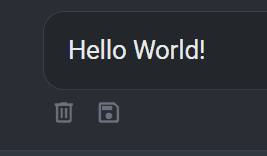
The two turn controls sit directly beneath each user message: delete (left) and save to context (right).
Delete removes that user message and everything the assistant produced in response to it (text, citations, work logs, figures) up to the next user turn. You can delete a turn from the middle of a conversation and leave the turns after it in place.
Save to context takes that same unit (your prompt plus the assistant’s response) and writes it into your context files as a new document. It appears in the Files menu alongside everything else you have uploaded, named from the first part of your prompt, and it persists independently of the conversation it came from.
Two things worth knowing:
- Deleting a turn changes what gets sent on your next prompt. The conversation history is assembled from what is currently on screen, so a deleted turn is removed from the model’s view, not just hidden from yours.
- Saved turns are ordinary context documents. You can select them, deselect them, remove them, and use them in a different conversation.
Tips & Workflows: Pruning Without Starting Over
I use turn deletion constantly. When I first added this feature I thought I would rarely use it, but I find myself clicking the little trashcan icon incessantly. It gives me the freedom to try different things, or go down a tangential line of reasoning, while preserving a clean conversation history.
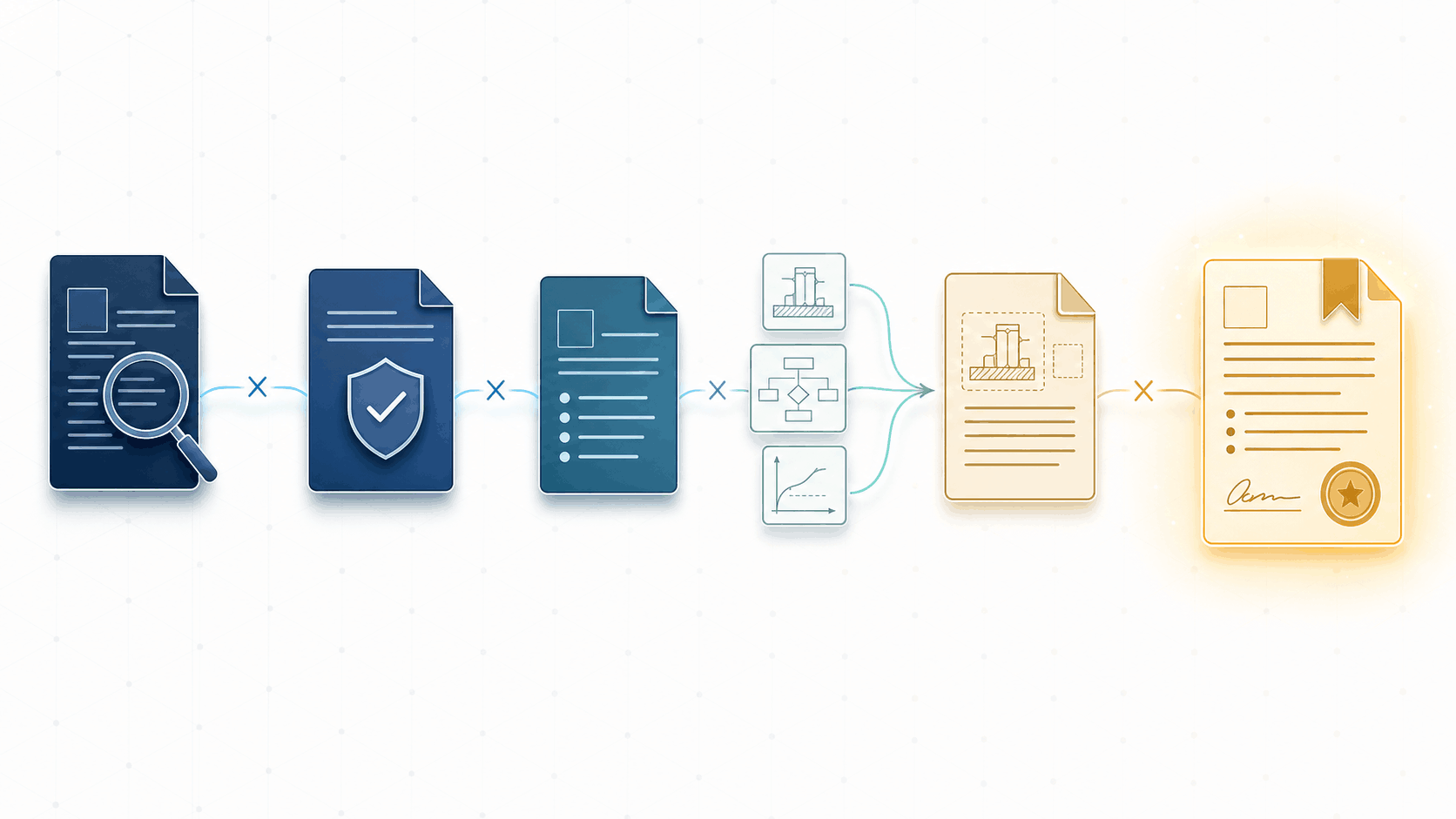
The last issue laid out a staged drafting workflow: finalize an artifact, start a clean conversation, upload the artifact, move to the next stage. The reasons for working that way haven’t changed. But starting a new conversation is a blunt instrument. It is the right move at a stage boundary, and the wrong move when you just want to undo the last prompt. Turn deletion fills in that gap.
Pruning inside a stage
Stage boundaries are where you clear the conversation. Turn deletion is for everything between them.
Claim drafting is the clearest case. That stage involves the most back-and-forth of any stage in the workflow, and by the time you converge you have accumulated a lot of superseded claim language. Previously the only option was to finish, save the claims out, and start fresh for the next stage. Now you can delete the intermediate versions in place and continue in the same conversation. The disclosure summary stays, the final claim set stays, and the eight drafts in between are gone.
Figure drafting benefits in a similar way. Issue 3 suggested either running figures in parallel conversations or clearing the conversation between figures. Turn deletion gives you a third option: generate the figure outline once, then work through the figures in a single conversation, deleting each figure’s generation turns after you have downloaded it. The outline stays at the top. You get the token efficiency of clearing without re-uploading the outline each time.
Auditing and fact checking
The use I did not anticipate is the small follow-up question. There are a lot of questions that are useful to ask in the moment but not useful to keep. If I ask the Sandbox to summarize how a reference is being applied by the Examiner, I will often follow up with something like which page of the Office Action that rejection appears on. If I have the Sandbox draft a set of claims, I will usually go back and check whether the disclosure documents actually support each element. Those exchanges do their job and then they are done.
Without a way to remove them, there is a quiet disincentive to ask. You end up weighing a verification question against the cost of cluttering a conversation you have spent an hour building. That is a bad tradeoff to be making, and it is not obvious that you are making it. With turn deletion the tradeoff goes away: ask whatever you need to ask, confirm the output is correct, then delete the follow-ups and keep the output.
Saving turns to context
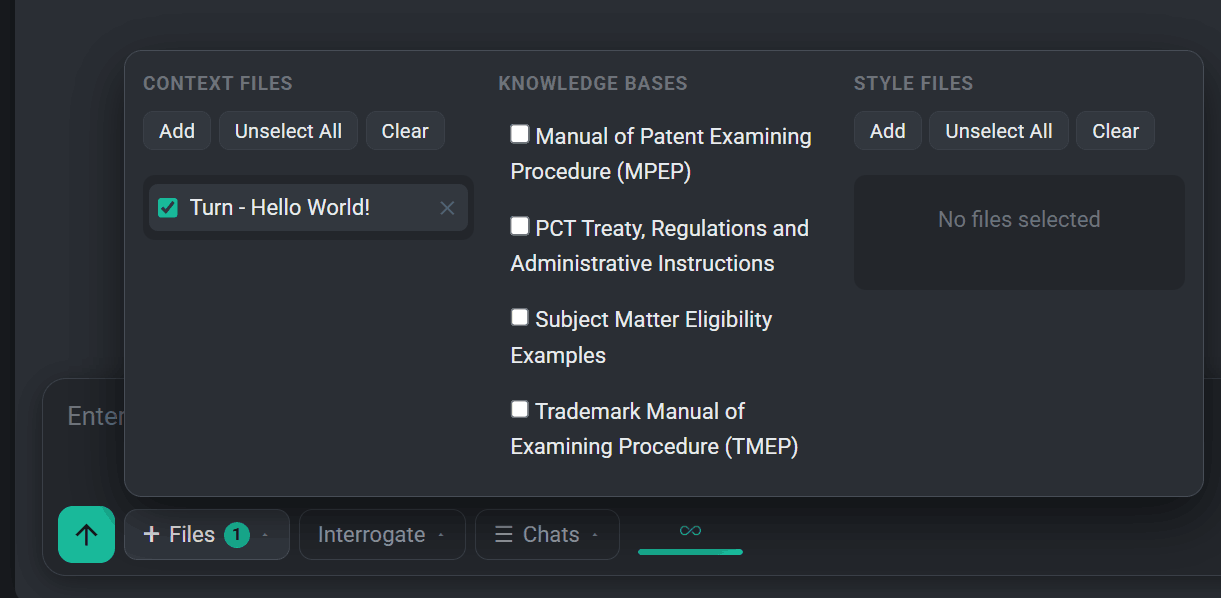
A saved turn appears in the Files menu as a context document, selectable and deselectable like any other file.
Save to context addresses the other half of the staged workflow. The workflow depends on each stage producing an artifact that the next stage consumes, which in practice meant generating something, exporting it, and re-uploading it. Save to context turns any conversation turn into that artifact directly.
Stage 1 is the obvious application. Issue 3 described producing a canonical invention description before drafting anything, and noted it deserved its own treatment. Whatever form that document takes for you, once the Sandbox has produced it you can save that turn and it becomes a context file available to every later stage. Same for a framing or strategy analysis: how the application should be positioned relative to the closest art, where the § 101 exposure is, which art unit it is likely to be assigned to. That analysis stays relevant for the life of the matter and no longer has to live in the conversation that produced it.
Feature Highlight: Compress Conversation
Turn deletion assumes you know which turns to remove. When a conversation has grown long but most of it is still relevant, that is not a useful assumption. Compress conversation sends the entire current conversation to be summarized, then restarts the chat with that summary as the opening context. A long session becomes a single block of text that the model reads as the starting point for what comes next.
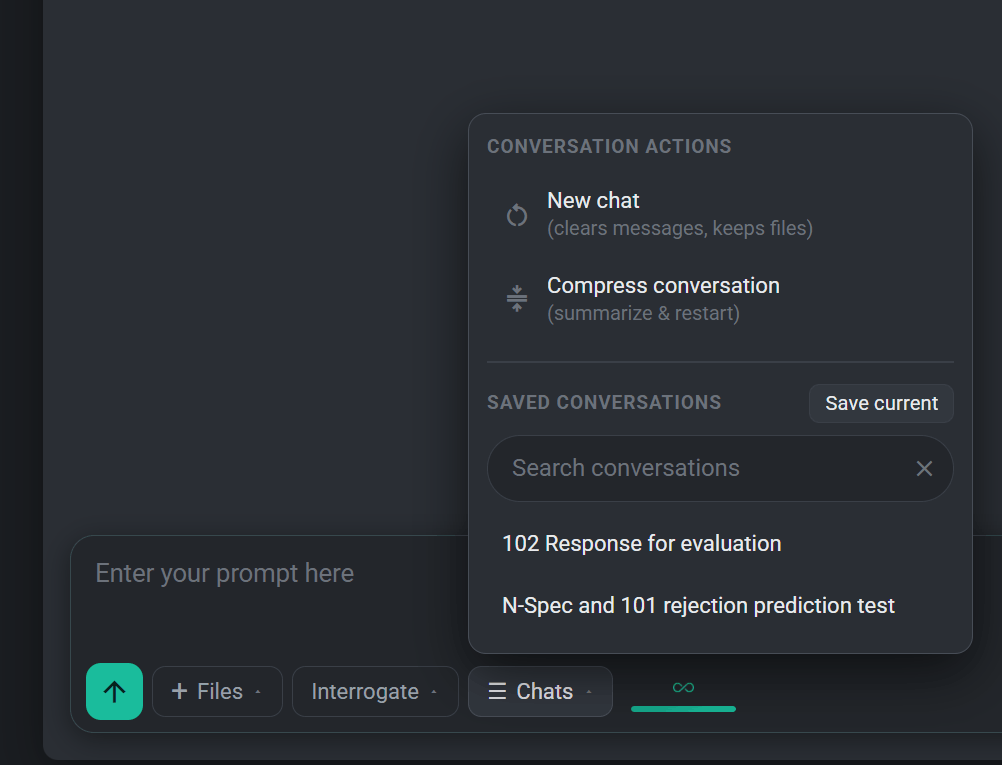
Both conversation actions are in the Chats menu. “New chat” clears messages but keeps your uploaded files.
Long prosecution analyses, multi-reference art reviews, and extended drafting sessions are the typical cases.
Two things to be aware of:
- Compression clears the existing conversation. The summary is what remains. Uploaded files are not affected, but the individual turns are removed.
- Summarization can be lossy. The instruction asks for a complete chronological summary that preserves facts, decisions, definitions, claim limitations, numbers, and open questions. It generally does this well, but it is a summary. If there is exact claim language or a specific numerical value you cannot afford to lose, check that it carried over.
Save the conversation before compressing it. If the summary drops something you needed, you can reload the original.
Feature Highlight: Display Settings
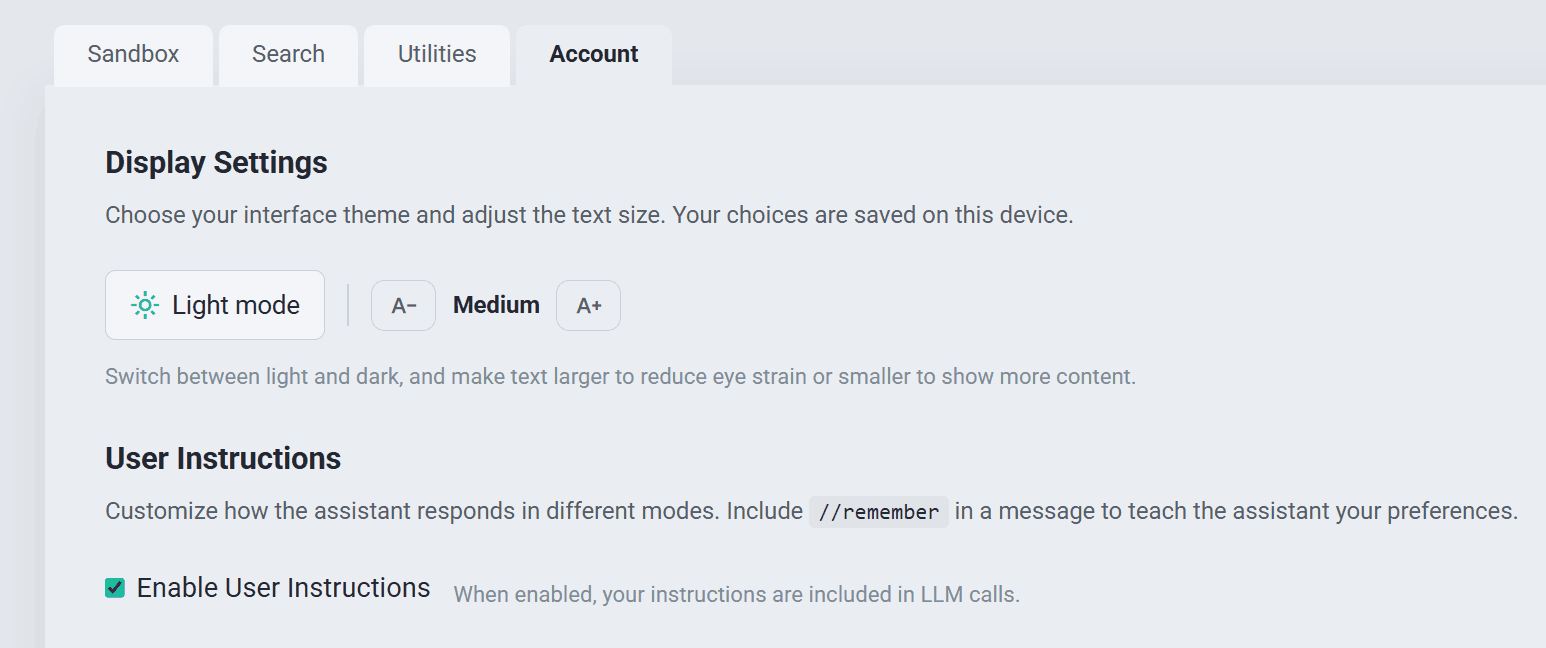
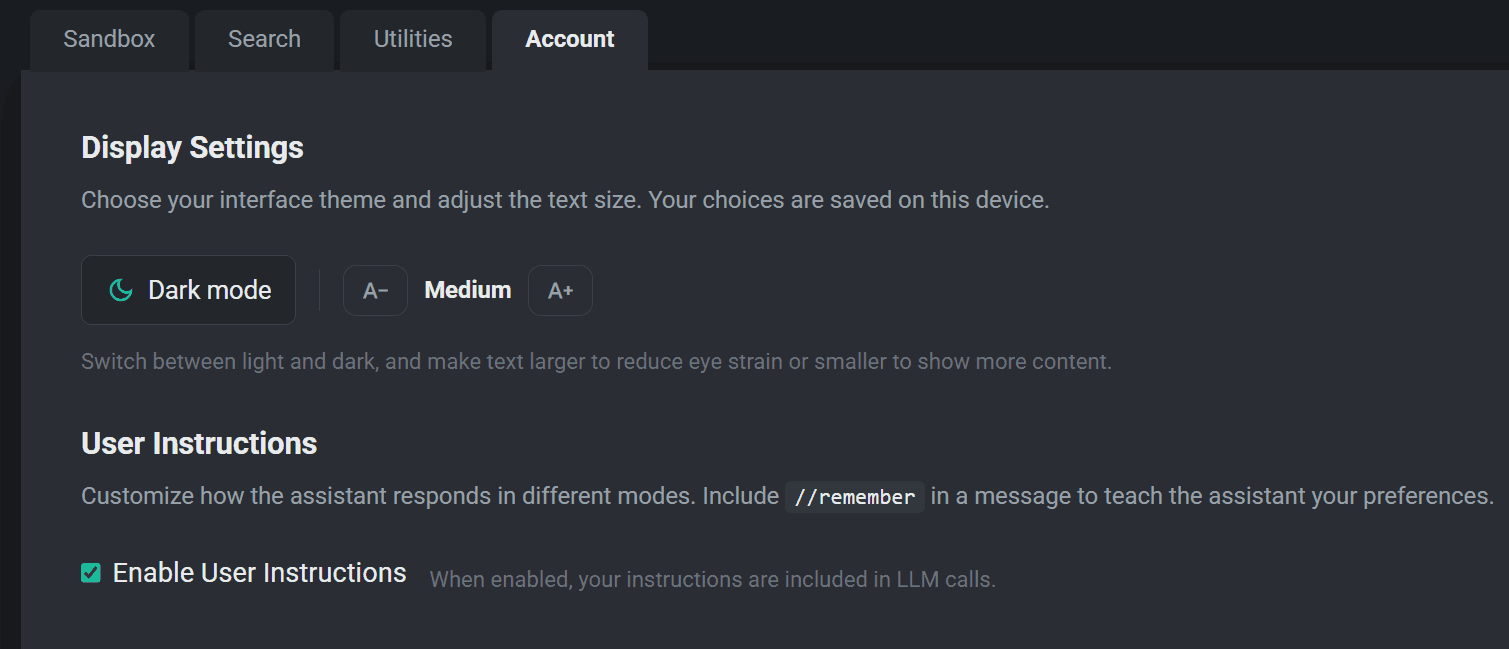
The Account tab now has a Display Settings section with two controls: a light/dark theme toggle and a font size setting with four steps (Small through X-Large). Both are saved per-device and applied before the page renders, so the page does not load in one theme and switch to the other.
| Light | Dark |
|---|---|
|
|
Dark remains the default. The reason for adding these settings is that people spend long stretches in this interface: larger text reduces eyestrain, and smaller text fits more of a claim set on screen at once.
Updates & Changelog
- Turn controls added. Delete and save-to-context buttons on every user message in the chat history.
- Compress conversation added to the Chats menu. Summarizes the current conversation and restarts with the summary as context. Uploaded files are preserved.
- Light mode added. Theme toggle in Account → Display Settings, saved per-device.
- Font size controls added. Four sizes, also in Account → Display Settings.
- Figure lightbox. Click a generated figure to open it full-screen; click again (or use the zoom button) to toggle actual size. Escape closes.
- Input card redesign. The prompt input is now a persistent card at the bottom of the screen rather than a numbered bubble in the history. Send has moved to the left of the control bar. Files, Mode, and Chats are consolidated into pill menus, and a badge on the Files pill shows how many sources are currently selected.
- Saved conversations are listed directly in the Chats menu with inline delete, and the list refreshes each time you open the menu.
- Various repositioning and color changes throughout the interface.
If you have developed your own approach to conversation management, or workflows built around saving turns to context, and would be willing to share it in a future issue, let me know. — Will