Feature Highlight: The New Context Retrieval System
Here is how things used to work. When you sent a prompt, the Sandbox compared it against chunks of your selected documents, pulled in the best-matching chunks, and all of your selected documents competed for one shared budget. This worked well for many requests and poorly for some, and when it worked poorly it did so silently. The classic failure: you ask about the claims, the retrieval pulls in scattered passages that happened to score well, and the response confidently reports that “claims 16 and 17 are not present.” They were present. They just weren’t retrieved.
That approach has been replaced. The Sandbox now looks at your prompt, your conversation history, and your selected documents, and decides how each document should be read for that specific request:
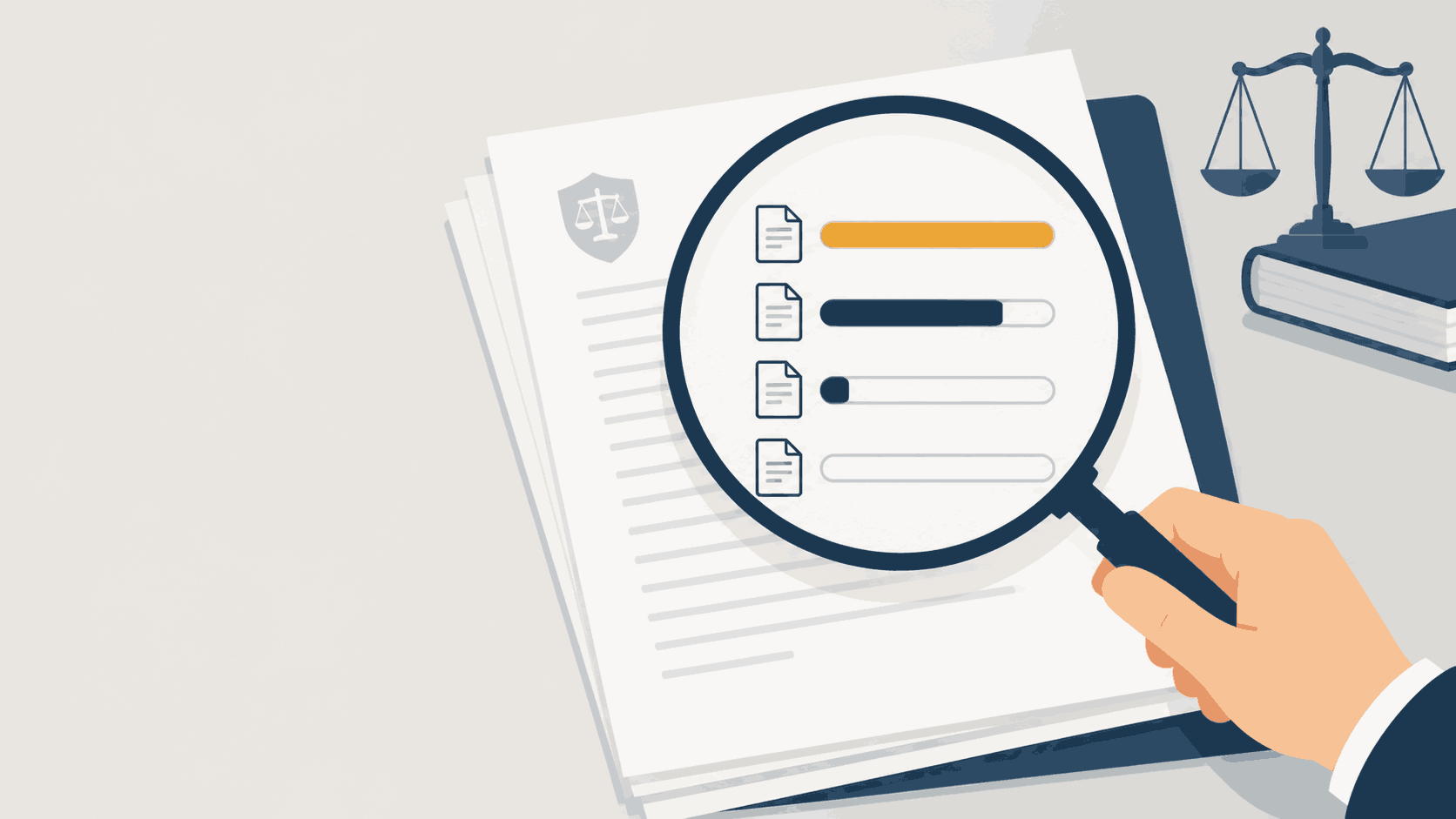
- Loaded in full. Documents that are relevant and small enough go in whole. A claim set, an invention disclosure, a figure outline: no excerpting at all.
- Targeted extract. When your request points at a specific section (“the claims,” “the rejection of claim 5”), that section is pulled as one contiguous piece.
- Relevant excerpts. The familiar sampling approach, for large documents where only scattered passages matter.
- Not retrieved. Documents judged unrelated to the current request are set aside, so they don’t dilute the context for the documents that do matter.
Two further improvements ride along with this. First, follow-up questions retrieve properly: a follow-up like “what about claim 7?” now retrieves as if you had asked the full question, because the retrieval step understands what “what about” refers to. Second, when a document isn’t read, or is only partially read, the model is explicitly told so and instructed not to treat absence as evidence. Instead of asserting something is missing, the response should acknowledge that a document wasn’t consulted in full.
One caution: the planning step will not always be right. It will occasionally set aside a document you actually needed. What has changed is that retrieval decisions are now visible and correctable rather than silent, which brings us to the Context report.
The Context Report
A collapsible Context report now appears beneath responses in interrogate, draft, and custom modes. One click expands it to show the total context tokens used, the actual retrieval query that was run, and every selected document grouped by how it was read, with percent coverage for each.
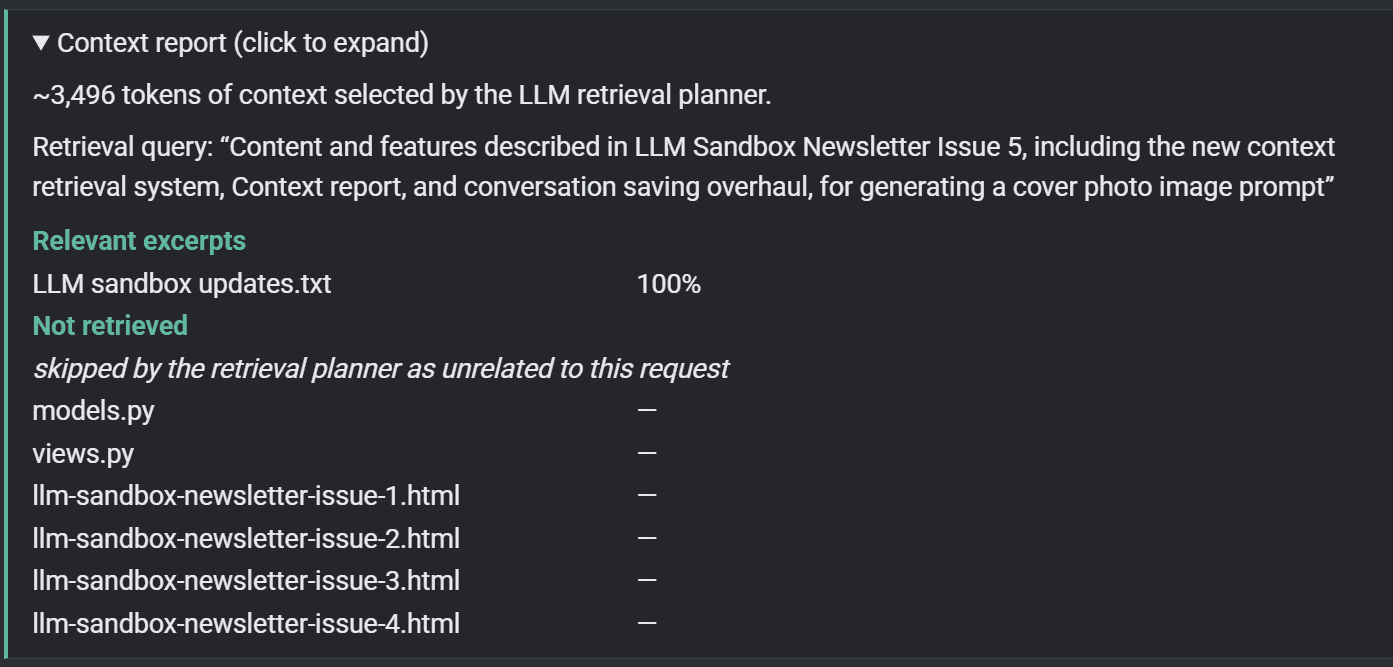
The Context report sits collapsed beneath each response; one click shows exactly what was sent to the model and how each document was read.
One glance tells you “these files were used at 100%, these were sampled at 40–60%, these were skipped.” For a careful practitioner this is arguably the most useful change in the whole update: before relying on an answer about a document, you can check whether the document was actually read, and how much of it. If something you needed was skipped or thinly covered, rephrase to reference it directly and ask again. (In interrogate mode, the top citations now live inside this same report instead of a separate expandable block.)
Tips & Workflows: Putting the New Retrieval System to Work
Do the file checkboxes still matter?
Yes, but differently. The checkboxes in the Files menu define the pool of documents the Sandbox is allowed to consider; the planner then decides how to read each one for a given prompt. So the new habit is: select at the task level, not the prompt level. Previously, you might toggle prior art references on and off depending on which rejection you were working on, because every selected document ate into the same retrieval budget. That per-prompt toggling is no longer necessary. Select everything relevant to the matter you’re working on, and let the planner set aside what a given prompt doesn’t need. Deselecting is still worthwhile for documents that belong to a different task entirely.
Steering how a document gets read
You don’t configure the retrieval behavior anywhere; you steer it with how you prompt. A few practical patterns:
- To get a whole document: reference it directly and ask for something that requires all of it. “Review the full claim set in [filename]” or “summarize the entire disclosure document.” Small documents that are clearly the subject of the request get loaded in full.
- To get a specific section: name the section. “The claims as amended in the OA response draft,” “the § 103 rejection of claims 5–9,” “the description of FIG. 4.” This triggers a contiguous extract instead of scattered samples.
- For broad questions across large documents: just ask. General questions (“does any of the cited art disclose a two-stage filter?”) naturally get the excerpt treatment across the relevant references, which is exactly what you want there.
- To bring back a skipped document: name it. If the Context report shows a document was set aside that you needed, rephrase with a direct reference and it comes back in.
Help the Sandbox know what your documents are
Since the Sandbox now uses its own judgment to decide how to build context, it helps for it to know what your documents actually are. Three cheap ways to do that: name files unambiguously (“US10123456_Smith_primary_ref.pdf” beats “document(3).pdf”); discuss or summarize documents early in a conversation, which gives the planner context for everything after; and reference files by name in prompts when precision matters: “get the claims from the OA response draft and map them against the ’708 reference.”
Walkthrough: An Office Action Response
You upload the Office Action, the current claims, the specification, and all four cited references, and select all of them. Then:
- “Summarize each rejection in the Office Action.” The OA is the clear subject, so it gets loaded in full or extracted by section; the references get set aside or lightly sampled. No need to deselect them first.
- “How does the ’708 reference allegedly teach the sensor array of claim 1?” The planner extracts the relevant rejection from the OA, pulls the claims, and excerpts ’708. The other three references are set aside; they don’t crowd out what matters. Under the old system, this is exactly the prompt where you’d have deselected the other references by hand.
- “What about the ’219 reference?” This kind of terse follow-up used to retrieve badly. Now it retrieves as if you’d asked the full question.
- Before drafting arguments, glance at the Context report on the analysis you’re about to rely on. If ’708 was only 30% covered and your argument hinges on what it does not disclose, ask a pointed follow-up naming the reference and the feature before committing to the argument.
Walkthrough: Drafting an Application
The staged workflow from Issue 3 still stands, and the reasons for it were never mainly about retrieval; keeping superseded drafts out of the conversation is about ambiguity, and no planner can tell which of the eight claim drafts in your history is the one you settled on. What changes is life within a stage:
- During specification drafting, keep the claims, figure outline, compiled figures, and disclosure all selected for the whole stage. A prompt like “draft the detailed description for FIG. 2” will load the small artifacts (claims, outline) in full, extract the FIG. 2 material, and sample the disclosure for supporting detail: automatically, per prompt.
- When you want every claim limitation addressed, say so and name the file: “using the complete claim set in [filename], confirm each limitation of claims 1–10 has literal support in the current draft.” Then check the Context report to confirm the claims were loaded at 100% before trusting the answer.
- Conversation length has more slack now. Because follow-ups retrieve well, multi-turn drafting sessions degrade less than they used to. Turn deletion and compress conversation (Issue 4) remain the right tools once a conversation accumulates material you no longer want in play.
A note on token usage
Some prompts now use fewer tokens than before (irrelevant documents get set aside instead of sampled), and some use more (a document that matters gets loaded in full instead of sampled thinly). Overall usage should come out roughly where it was. The difference is that the tokens are spent on the right material, and the Context report lets you see exactly where they went.
Feature Highlight: Conversation Saving
The old saving model had one “save current” button that prompted for a name every time, and the Sandbox had no concept of which conversation you were in. That caused two real problems: updating a saved conversation meant re-typing its exact name (get it slightly wrong and you created a duplicate), and clicking a saved conversation’s name loaded it, silently replacing your current work.
A practitioner hit exactly the second one: she saved a chat at the start of a session, worked for a while, then went to save it again at the end. Instead she clicked the saved name, the old version reloaded, and the session’s work was gone. She also suggested an automatic save option. Both the fix and the suggestion are in this release.
The Sandbox now tracks which conversation you’re in, and everything else follows:
- Named conversations with a live status line. The Chats menu shows the current conversation’s name and its state: “Unsaved changes,” “All changes saved,” and so on. The active conversation is marked “Current” in the saved list.
- Save vs. Save as… Save updates the current conversation in place, one click, no re-typing. Save as… names a new conversation or forks the current one, with a confirmation if the name would overwrite something else.
- Autosave. A toggle in the Chats menu that re-saves the conversation a couple of seconds after each change. Off by default, opt-in per session, and if a save fails the status line says so.
- Unsaved-changes protection. Starting a new chat, compressing the conversation, or opening a different saved conversation while you have unsaved changes now triggers a warning with three options: save and continue, continue without saving, or cancel. The silent-overwrite scenario is closed.
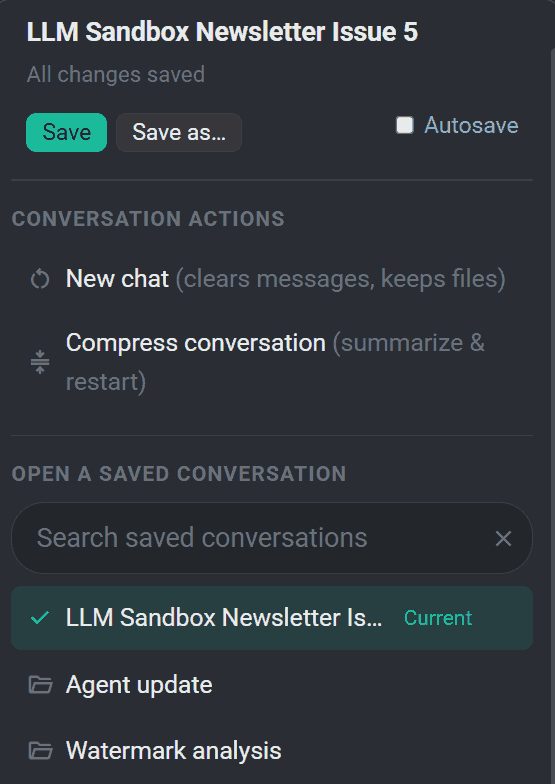
The reworked Chats menu: conversation name and status at the top, Save/Save as…/Autosave controls, and the saved list with the active conversation marked “Current.”
The habit worth building: at the start of a session, Save as… to name the conversation, flip on Autosave, and forget about it. Two things worth knowing. First, sessions time out after 4 hours of inactivity, which is exactly why Autosave matters. Second, a saved conversation captures more than the transcript: loading one restores the messages, the mode, and the context/style file selections, so you pick up exactly where you left off.
Updates & Changelog
- New context retrieval planner. Each selected document is now read in the way that fits the request: loaded in full, targeted extract, relevant excerpts, or not retrieved. Replaces one-size-fits-all sampling where all documents competed for a shared budget.
- Context report added. Collapsible report beneath responses in interrogate, draft, and custom modes showing context tokens, the retrieval query, and per-document coverage. Top citations in interrogate mode are folded into it.
- Follow-up retrieval fixed. Retrieval queries are rewritten using conversation context, so short follow-ups (“what about claim 7?”) retrieve properly.
- No more phantom “missing” content. The model is told when a document was not retrieved or only partially reassembled, and instructed not to treat absence as evidence.
- Conversation saving overhauled. Named conversations, one-click Save, Save as…, an Autosave toggle, unsaved-changes warnings before destructive actions, and a search bar for the saved list.
- Agent mode improvements. Every agent action now goes through the retrieval planner (motivated by agent runs falsely reporting missing claims), and the work log is now a linear, step-by-step narrative you can read top to bottom, styled to match the Context report.
The retrieval change is the kind of update where real-world experience matters more than anything I can write here. If the new system is working well in your workflows, or if it broke a habit you relied on, I’d like to hear about it. And as this issue’s autosave story shows, suggestions do end up in the tool. — Will