Feature Highlight: The Updated Figure Mode
Flowcharts
Flowcharts with many steps, decision branches and off-page connectors are now laid out more cleanly, and connectors are routed more cleanly between shapes.
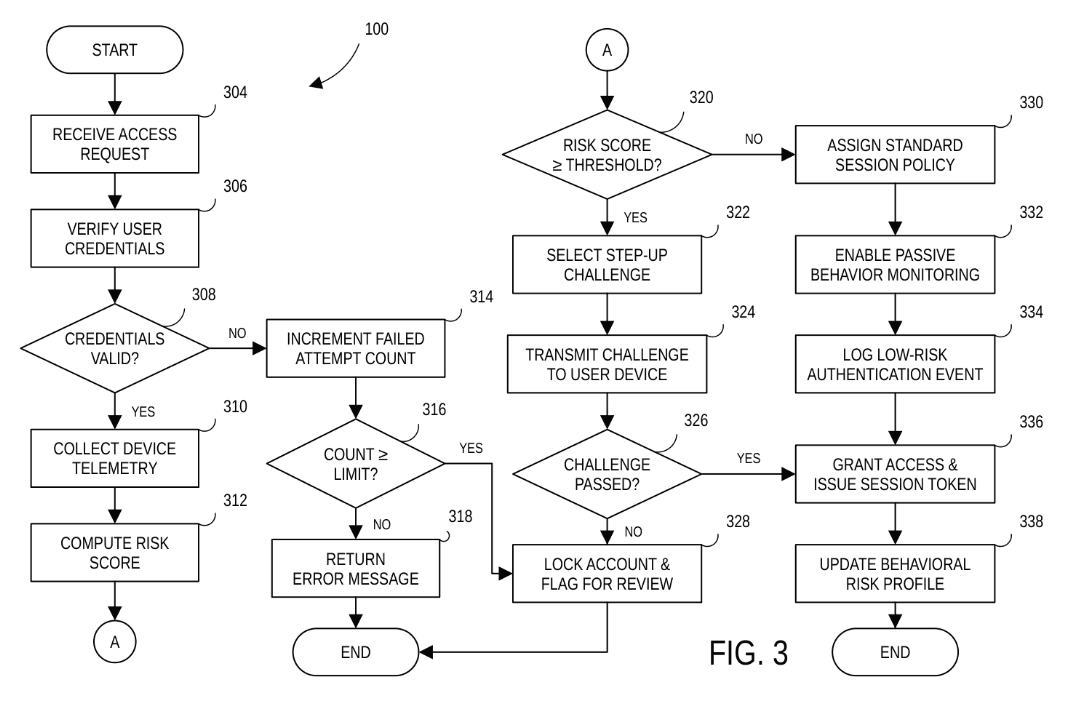
A risk-based authentication method in four columns, with five decision points and an off-page connector.
User interfaces
GUI figures, made up of windows, panels, buttons, charts and tables, are a good fit for this mode.

A dashboard interface with a gauge, charts, a comparison table and controls, each with its own reference numeral.
Editable versions of existing figures
A lot of patent figure work starts from figures that already exist: a client’s standard system figures, the figures from a parent case, a slide from an inventor presentation, or a sketch. These often arrive as a PDF or an image. To reuse them in a new application, you previously had to track down the original, editable files (if they still existed), or redraw each figure by hand.
The updated mode reads uploaded figures more accurately and can draw a much wider range of figures, so it can now usually turn this kind of material into a fully editable Visio file. The input can be a PDF, a screenshot, a scanned page, a PowerPoint slide, or a photo of a hand sketch. Visio files can in turn be opened in or converted to other tools, such as draw.io.
In practice, this means the figures you are given can be edited directly instead of being redrawn first. Upload the figure and ask for a duplicate. You can then edit the copy in Visio, or ask the Sandbox to make the changes your application needs (renumbering, adding or removing components, and so on). For most figure drafting workflows, this removes one of the slowest steps.
Below is an example. The figure on the left was uploaded as a flat image, and the figure on the right is the Visio file the Sandbox produced from it.
| Uploaded image | Figure mode output (Visio) |
|---|---|
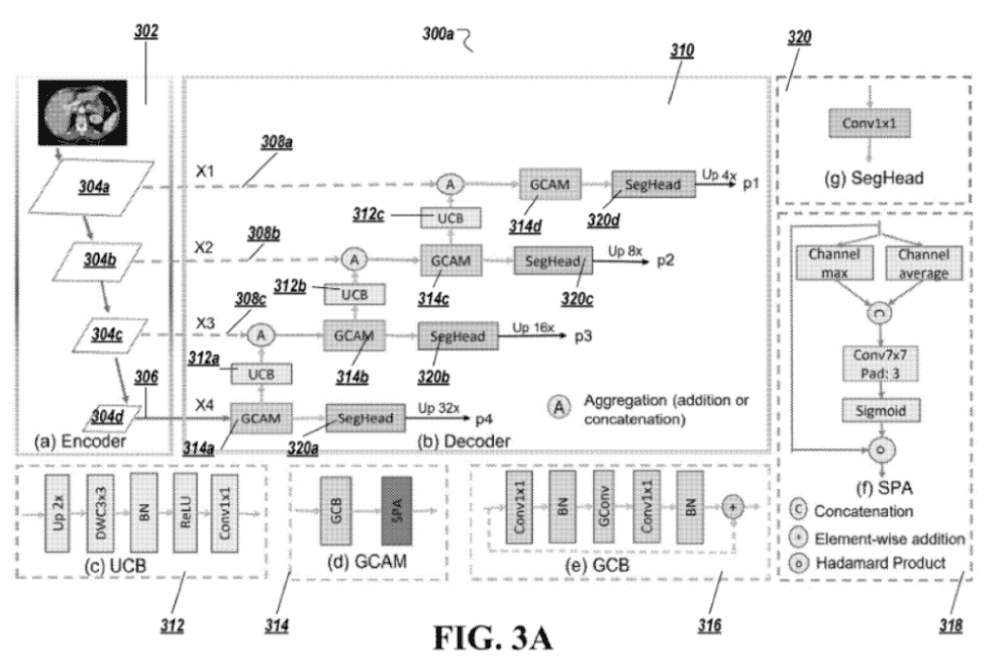
|
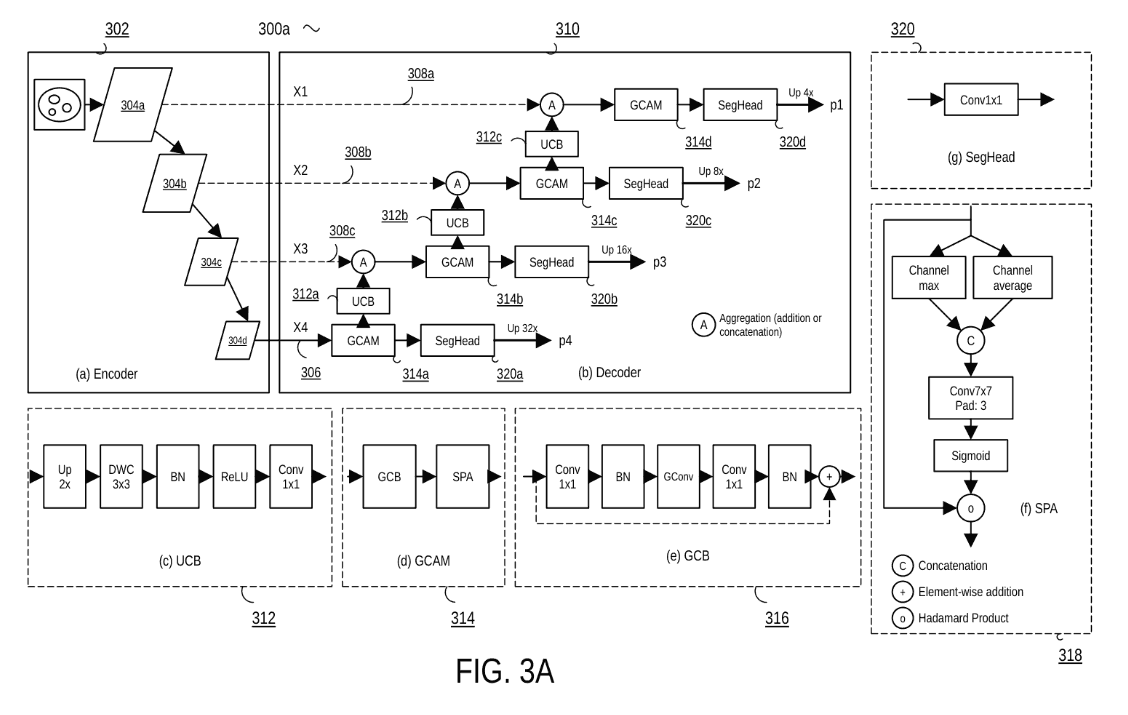
|
Click either figure to view both at full size.
The blocks, connections, labels and reference numerals all carried over, and every element in the copy can now be moved, relabeled or deleted. The differences are mostly cosmetic: the gray shading was dropped, rotated text became horizontal, and the CT image in the encoder panel became a placeholder icon. (Photographs embedded in a figure are not reproduced.)
Simple illustrations
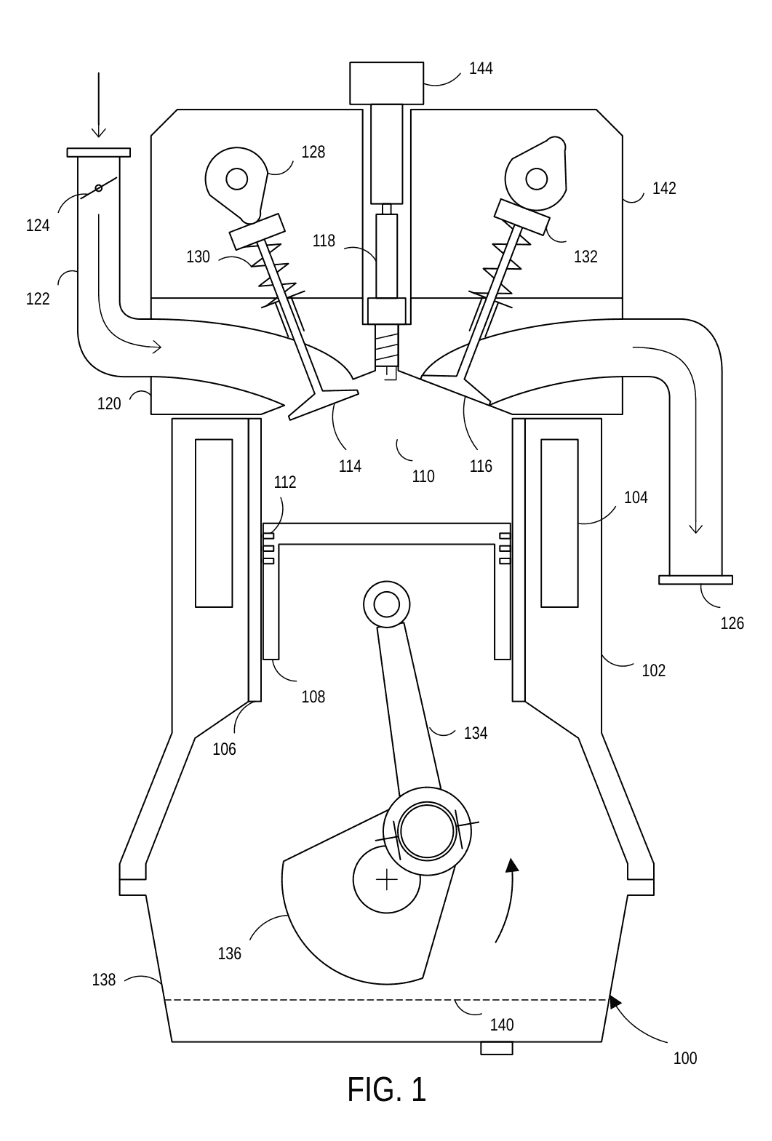
The engine cross-section at the top of this page was also drafted in this mode, as were the two figures below. Illustrations made up of lines, arcs and simple shapes, with hidden lines, centerlines and lead lines to reference numerals, are now within its range.
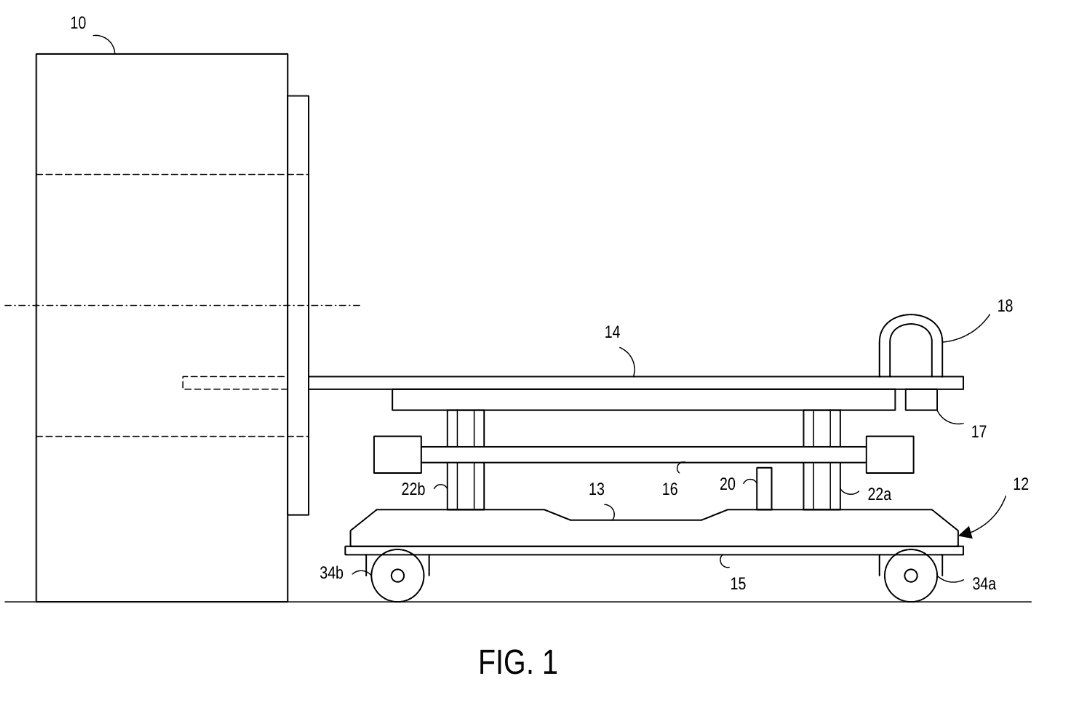
An MRI patient table docked with the scanner housing, with hidden lines and a centerline.
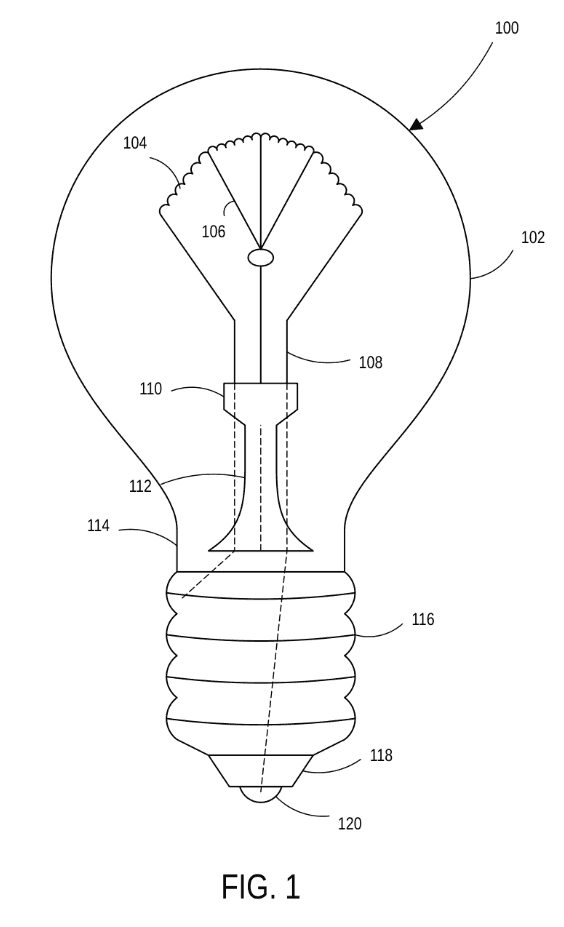
A light bulb, showing the filament, support leads, stem and screw base.
These figures are also a fair indication of where the range ends, which is the subject of the next section. (For a way to push a little past it, see the last tip below.)
Which Figure Mode to Use
As a rough guide, if a figure is about as complex as the engine, MRI table or light bulb above, or simpler, use the Figure (Flowchart/Block Diagram) mode. If it is more visually complex, or depends on accurate geometry that can’t easily be built from lines and curves, use the Figure (Illustration) mode covered in Issue 2. Converting a photograph into a line drawing (for example, a photo of a new buckle design) is still a job for the Illustration mode.
| Figure (Flowchart/Block Diagram) | Figure (Illustration) |
|---|---|
| Flowcharts and block diagrams | Visually complex illustrations |
| User interface screens | Photo-to-line-drawing conversion |
| Simple illustrations (lines, arcs, basic shapes) | Figures that depend on accurate geometry |
| Editable Visio versions of figures you only have as a PDF or image | |
| Output: Visio file, editable shape by shape | Output: SVG image, editable but harder to work with |
| Follow-up edits: precise and predictable | Follow-up edits: less predictable |
Editing a figure after the first draft
The two modes also differ in how well they handle changes. A Flowchart/Block Diagram figure is stored as a structured description of every shape, label and connector, and the Visio file is built from that description. When you ask for a change, the Sandbox edits the description, so the change lands where you asked and the rest of the figure stays as it was. This means you can make specific requests, such as:
Example edit
“Move the shape 112 a little bit to the left, so that it lines up vertically with 110.”
Example edit
“Remove step 220 and add a decision block between 218 and 222 which evaluates a temperature threshold, and if the threshold is exceeded returns to 204 instead of proceeding to 222.”
The Illustration mode produces an SVG image. An SVG can technically be edited, but it is much harder to work with than a Visio file, and conversational edits to an illustration are less precise and less predictable. If you expect a figure to go through several rounds of changes, that is a good reason to use the Flowchart/Block Diagram mode where you can.
Tips
- Make changes by describing them. Since edits in this mode are precise, you can refer to shapes and steps by their reference numerals and say exactly what should move, be added, or be removed. You usually don’t need to open Visio for routine changes.
- Expect the first draft to take a while, but edits to be quick. Drafting a complex figure from scratch can take some time. Follow-up edits are much faster, because the Sandbox adjusts the existing figure instead of rebuilding the whole thing.
-
Upload good style examples. Figures uploaded under
“Style” now matter more than before, because the mode follows them much
more closely. Upload clean
.vsdx,.pptx, PDF or image files of relevant figures whose style you want matched. - Advanced: start in the Illustration mode. For a figure that is a bit too visually complex for this mode, first generate it in the Figure (Illustration) mode. Then upload the resulting image under “Style” and ask the Flowchart/Block Diagram mode to reproduce it. This sometimes produces a better illustration-type figure than the Flowchart/Block Diagram mode can produce on its own, and the result is an editable Visio file.
Updates & Changelog
- Figure (Flowchart/Block Diagram) mode updated. Handles a wider range of figures, including larger flowcharts, block diagrams, user interfaces and simple illustrations, with improved connector routing. Follow-up edits adjust the existing figure instead of redrawing it from scratch.
- Style uploads in Figure drafting. Figures uploaded under “Style” (images, PDFs, Visio and PowerPoint files) are followed much more closely, and can usually be converted into editable Visio files.
- Agent mode work log. The work log now updates as the agent works, showing each action as it is taken. You can also send input to the agent while it is working, or pause or cancel the run.
If you try the updated mode on figures from your own cases, I’d be interested to hear how it does, particularly on figures it doesn’t handle well. — Will